

The DM gave us access to Uncommon Magical items and I bought "Staff of Python" !
A staff that becomes a Giant Constrictor Snake
Time for Blendering!!
First off I created a 3D curve and extruded a circle along it.
The I added another curve to define a taper.
Then I attached a head and used the Sculpt tools.
I used a Voronoi texture with the thresholds modified to make a snake skin scale pattern.
Manually painting it on took ages, but it looks good!
Then it was off to Prusa Slicer. I used Organic supports.
I printed it too small originally. This is a Giant creature!
The two larger prints are done at different detail levels.
Removing the supports was a pain and one of the snakes lost its head! I glued it back on.
In retrospect I should have printed them without the base to help with safely removing support material and then glued them onto blank bases.
Sadly you can not see the scales I spent so long adding.
Get qemu to run Alpine Linux and stick around to add a desktop.
Alpine is a very small Linux distro, often used for virtual servers, but I wanted a tiny desktop VM.
There are various versions of Alpine on the Downloads page make sure you select from the Virtual category e.g.
wget "https://dl-cdn.alpinelinux.org/alpine/v3.24/releases/x86_64/alpine-virt-3.24.2-x86_64.iso"
The one thing we need is a virtual disk to install Alpine onto.
qemu-img create -f qcow2 alpine-disk.qcow2 16G
Will return almost immediately. The disk file will resize automatically as it used.
Now we just need to tell qemu what to boot from with our new disk file attached.
qemu-system-x86_64 -enable-kvm -m 2048 -smp 2 -vga virtio -drive file=alpine-disk.qcow2,if=virtio -cdrom alpine-virt-3.24.2-x86_64.iso -boot d
Change the disk name and ISO to match the ones you have.
Enter the user
root
There is no password
setup-alpine
Set your keymap e.g.
gb
Set the keymap variant e.g.
gb
Enter a hostname, optional e.g.
alpine
Set up the network
initialize
default (eth0)
IPv4 address
default (dhcp)
IPv6 address
default (auto)
do you want any manual network configuration
default (n)
Root password (enter it twice to confirm)
Timezone e.g.
GMT
Proxy
default (none)
APK mirror
default (1)
User (create a user)
ssh key
default (none)
ssh server
default (openssh)
Disk and Install
vda
How to use the disk
sys
erase disk
y
there is no shutdown command so when it asks to reboot
halt
the vm will not shut after it stops running, so just close the window once it is done
qemu-system-x86_64 \
  -enable-kvm -m 2048 -smp 2 -vga virtio \
  -drive file=alpine-disk.qcow2,if=virtio \
  -netdev user,id=net0,hostfwd=tcp::2222-:22 \
  -device virtio-net-pci,netdev=net0 \
  -device qemu-xhci \
  -device usb-tablet \
  -device usb-kbd \
  -display gtk,zoom-to-fit=off
We are now booted into the new installed Alpine on our virtual disk.
I do not want to type long complicated commands into the qemu window and openssh is running.
How can I tunnel a port from the local host machine into the qemu VM?
ssh -p 2222 user@127.0.0.1
where
user
is the user you created during the
setup-alpine
process
There is no
sudo
command, instead you use
doas
doas vi /etc/apk/repositories
uncomment, remove the # before the communities line, save and exit
doas apk update
doas apk add xorg-server xf86-input-libinput xfce4 xfce4-terminal lightdm lightdm-gtk-greeter mesa-dri-gallium eudev elogind polkit-elogind xfce-polkit xrandr

echo "exec startxfce4" > ~/.xinitrc

doas rc-update add udev sysinit
doas rc-update add dbus default
doas rc-update add elogind boot
doas rc-update add polkit
doas rc-update add lightdm default

doas vi /etc/init.d/udev-settle
and delete all the existing lines and add
#!/sbin/openrc-run
# Copyright 2014 Gentoo Foundation
# Distributed under the terms of the GNU General Public License v2

depend() {
    need udev
    after udev-trigger
    provide dev-settle
    keyword -containers
}

start() {
        ebegin "Triggering uevents"
        udevadm trigger
        eend $? || return 1

        ebegin "Waiting for uevents to be processed"
        udevadm settle \
            ${udev_settle_timeout:+--timeout="${udev_settle_timeout}"}
        eend $?
}
This allows the mouse and keyboard to work in the VM.
mkdir -p .config/autostart
vi .config/autostart/display.desktop
and paste in
[Desktop Entry]
Encoding=UTF-8
Version=0.9.4
Type=Application
Name=display
Comment=resolution
Exec=xrandr --output Virtual-1 --mode 1920x1080
OnlyShowIn=XFCE;
RunHook=0
StartupNotify=false
Terminal=false
Hidden=false
save and exit
where the mode is the resolution you want the VM to run once you are logged in. If you set the resolution in the Settings it will only work until you reboot, hence this hack.
The default keyboard is US, this will switch it to GB
mkdir -p .config/xfce4/xfconf/xfce-perchannel-xml
vi .config/xfce4/xfconf/xfce-perchannel-xml/keyboard-layout.xml
and enter
<?xml version="1.1" encoding="UTF-8"?>

<channel name="keyboard-layout" version="1.0">
  <property name="Default" type="empty">
    <property name="XkbDisable" type="bool" value="false"/>
    <property name="XkbLayout" type="string" value="gb"/>
    <property name="XkbVariant" type="string" value=""/>
  </property>
</channel>
save and exit
doas reboot
Now the login screen appears and you can login!
and if you have not followed the set the display resolution you get an itty bitty screen like this !
I suggest you back up your
qcow
disk image then you can use it as blank template for installing things like
chromium
doas apk add chromium
I consider myself quite proficient at Blender, but I messed up this time.
Got a cheap rotary tool from Amazon to fix a D&D figure I printed. The box it came in was just packaging and there are number of loose attachments etc.
I know, I can 3D print a box for it!
I wanted it to be a simple as possible. So I could tweak it as necessary.
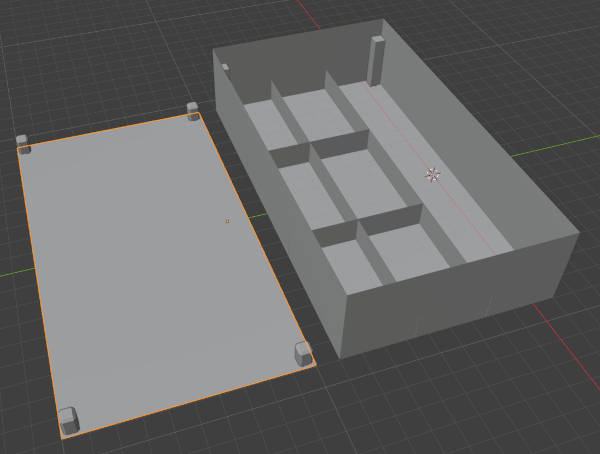
The box has no volume to any of the planes (ignore the corner posts, they are separate). The plan being to use the Solidify modifier...
Sort of worked, well it looked good so exported to .STL and opened in Prusa slicer.
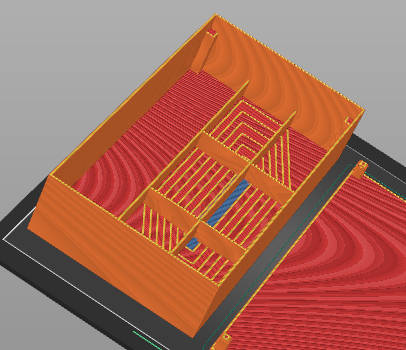
and ... I did not notice the gaping hole at the bottom :(
so after 8 hours I had ...
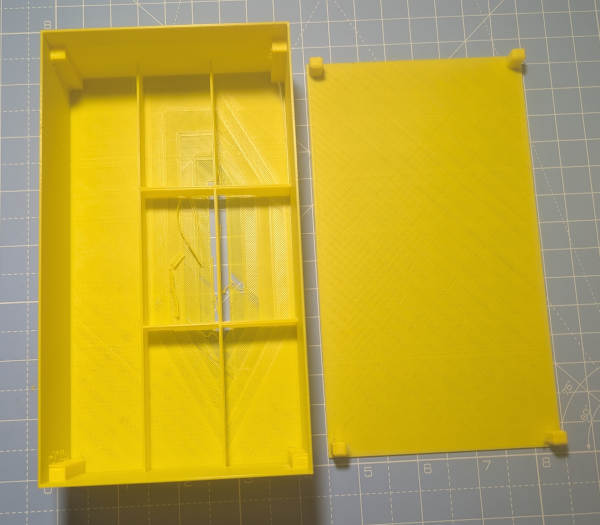
I went back to Blender and found that the geometry that the Solidify modifier creates when you have extruded planes was bit odd. Lots of crossed over and missing faces.
Fixed that and increased the thickness from 1mm to 1.5mm
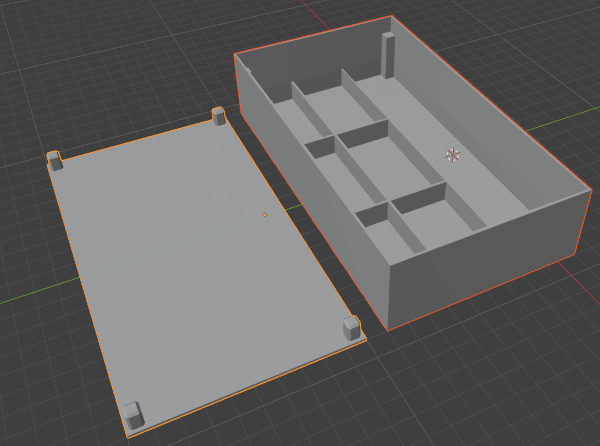
I used a quick Solidified box with the Array modifier to replace the separators.
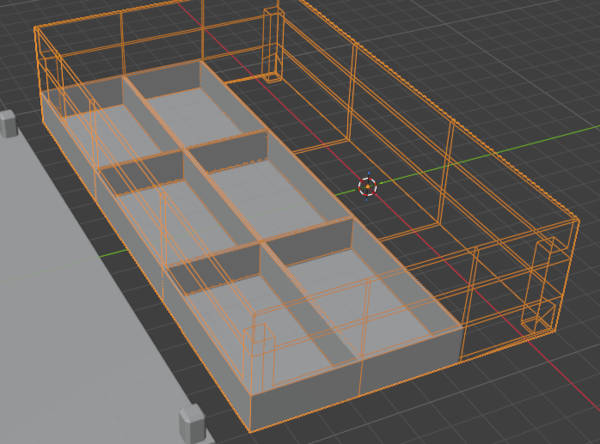
The Boolean modifier stuck the posts and the separators all together.
and ...
It prints! Twelve hours now with the thicker walls.
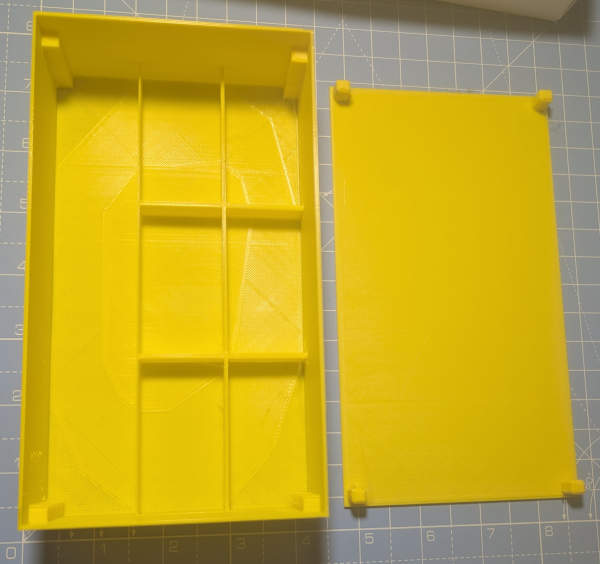
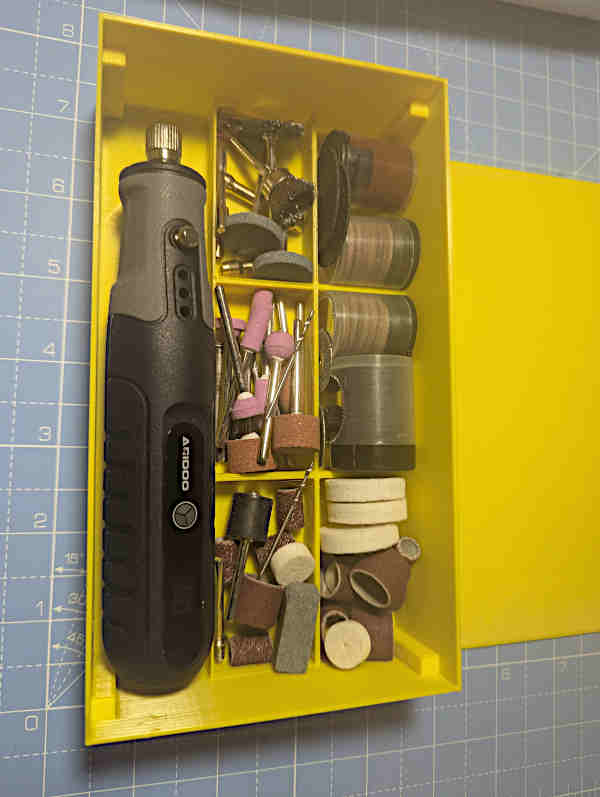
I was going to embed magnets, but I cannot find any of my magnets.


email
root
flog archives
Disclaimer:
This page is by me for me, if you are not me then please be aware of the following

I am not responsible for anything that works or does not work including files and pages made available at www.jumpstation.co.uk
I am also not responsible for any information(or what you or others do with it) available at www.jumpstation.co.uk

In fact I'm not responsible for anything ever, so there!